|
Pro Corner |
|
Product Search |
Introduction
This function allows
you to search for appliances by product number, model or brand. On the search
page there are three input text fields displayed, this is where the desired
search criteria must be entered. Click the desired button below the text field
to start the search. If your search criteria matches the database a search
result will be shown.
It's possible to
enter only a part of the criteria, and then to present all products starting
with the particular characters you keyed. For more advanced searches a wildcard
“*” can be used to replace one or several characters. You may then select the
desired appliance from the displayed Product list by clicking on a suitable
link.
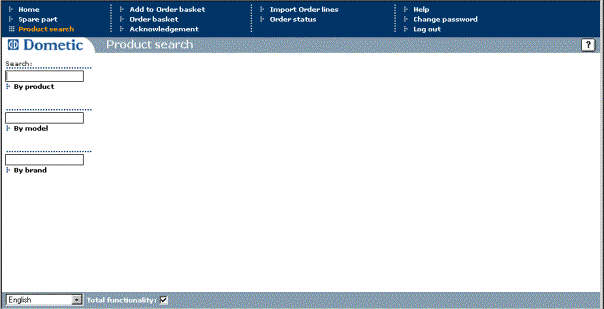
Search by Product
(PNC)
·
Enter a complete
product number, part of or use wildcard search.
Example: 911360160, 911, or as 911*160.
1.
When you enter a
complete product number an overview of that appliance is displayed, see sub
header Overview below.
2.
When you enter part
of a product number or leave the input field empty, a list of products are
displayed that meet your entered criteria. For more information, see Product
list, below.
Search by Model
·
Enter a complete
model code, part of a model code or use wildcard search. Example: RW145, RW or
RW*5
1.
When you enter a
complete model code that only applies to one unique product an overview of that
appliance is displayed, see sub header Overview
below.
2.
When you enter a
complete model code that applies to several appliances, or enter part of a
model code or leave the input field empty, a list of model codes are displayed
that meet your entered criteria. For more information, see Product list, below.
Search by brand
·
Enter a complete
brand, part of a brand, leave the input field empty or use wildcard search.
Example: Dometic, do, *martin*
A single brand or list of brands will be displayed to the right of the
page.
·
Select the brand of your choice.
A list of
product groups is displayed.
·
Finally, select the desired product group.
A list of
products is displayed, based on chosen brand and product group.
Product
list
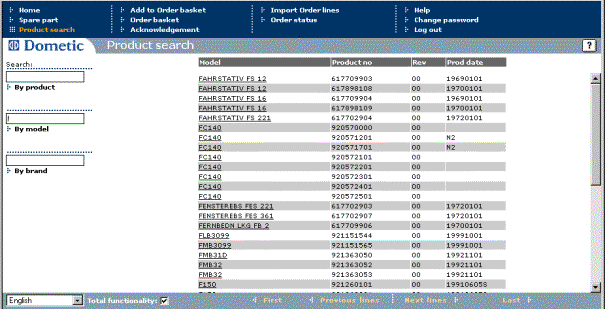
Your searches result
in most cases in a product list. If the number of results exceeds 50, buttons
to scroll forwards and backwards are displayed (does not apply for
brands/product groups).

From the product list
you must select the product you are interested in and an overview of that
products is displayed.
Product
Overview
Once one of the
previous searches has been carried out, an overview of the selected product
will be displayed.
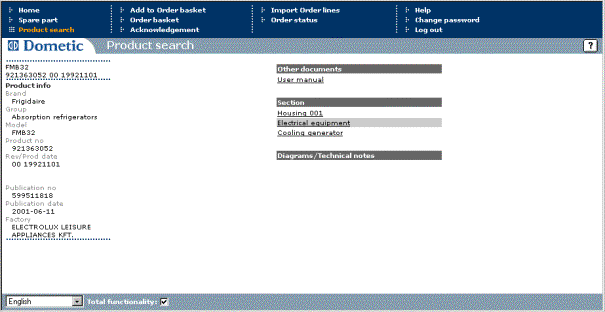
Information displayed
to the left includes: brand, product group, model, product number,
revision/product date, publication number, publication date and factory of
origin.
To the right the page
is divided into three parts: user manual, section and diagrams/technical notes.
User manual
When you select the
link to a user manual a new window is opened and you are taken to a different application.
In this application you will be able to view available user manuals. In some
cases a user manual will not exist for current product.
Section
Beneath this
subtitle, links to sections for chosen product are listed. By clicking on a
section link a page is displayed with a full size exploded view next to the
corresponding parts list.
Diagram/Technical
notes
If diagrams and/or
technical notes exist for current product they are displayed as links in a
list. To view a diagram/technical note, select link of your chose and a picture
is displayed in the right frame.
Exploded
View
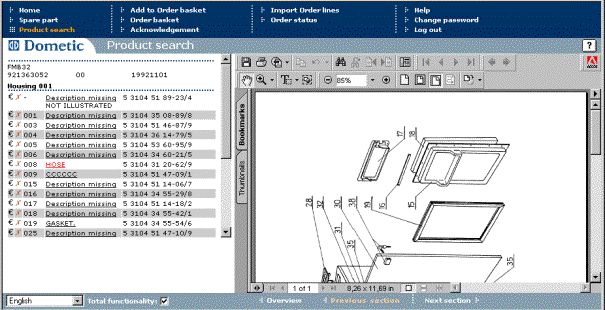
This
screen shows the spare part list in the left frame and the exploded view to the
right. The left frame also shows the model code, the product number, revision,
product date and the chosen section at the top of screen. The list of the parts
consists of currency sign, stock status sign, position, part description, a
comment appearing below each part number if available, and finally the part
number.
More information
about a part can be found:
If you hold the mouse
pointer over the currency sign  ,
prices are displayed in the status bar, if applicable.
,
prices are displayed in the status bar, if applicable.

Furthermore, if you
hold the mouse pointer over the part description, information about
replacements of parts is displayed. I.E. If a newer
part replaces current one, the new part number will be displayed in the status
bar along with the gross price, if applicable.

Explanation for the stock status sign:
 = spare part on stock
 = spare part out of stock
Navigation
In the sub menu buttons are displayed, which you can use to move to
another section in current product or return to the product overview.

Add order line
To add a spare
part to your order basket:
·
Click on the desired part description.
A new section is
displayed in the bottom left hand corner.
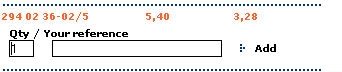
·
Enter quantity
·
Enter reference (optional)
·
Click on the Add button.
When the part is added to your order basket, the following text is
displayed: Quantity added to order: 1. The number reflects the quantity you previous entered.